Work Brief
Work Brief helps you catch up on project changes and decide what to check next. Open Command → Work Brief in the UnfoldAI sidebar. Your conversation draft stays available when you return to Command.
Claude Code moves an import API to background jobs. Codex adds retries to the client, but keeps the old immediate-completion assumption. If the acceptance response is lost, a retry with a new key can create a second job. Work Brief brings the changes together and gives you a focused task to hand back to each agent.
Example next check: “Claude Code moved imports to 202 + jobId, but Codex still expects immediate completion and changes the key on retry. Test a lost acceptance response: one import should create one job, and the client should follow it to completion.”
The agent brief names a task for each side: Claude Code aligns the server’s repeated-submission behavior; Codex fixes retry identity and follows the job to completion. You choose which instructions to send to each agent.
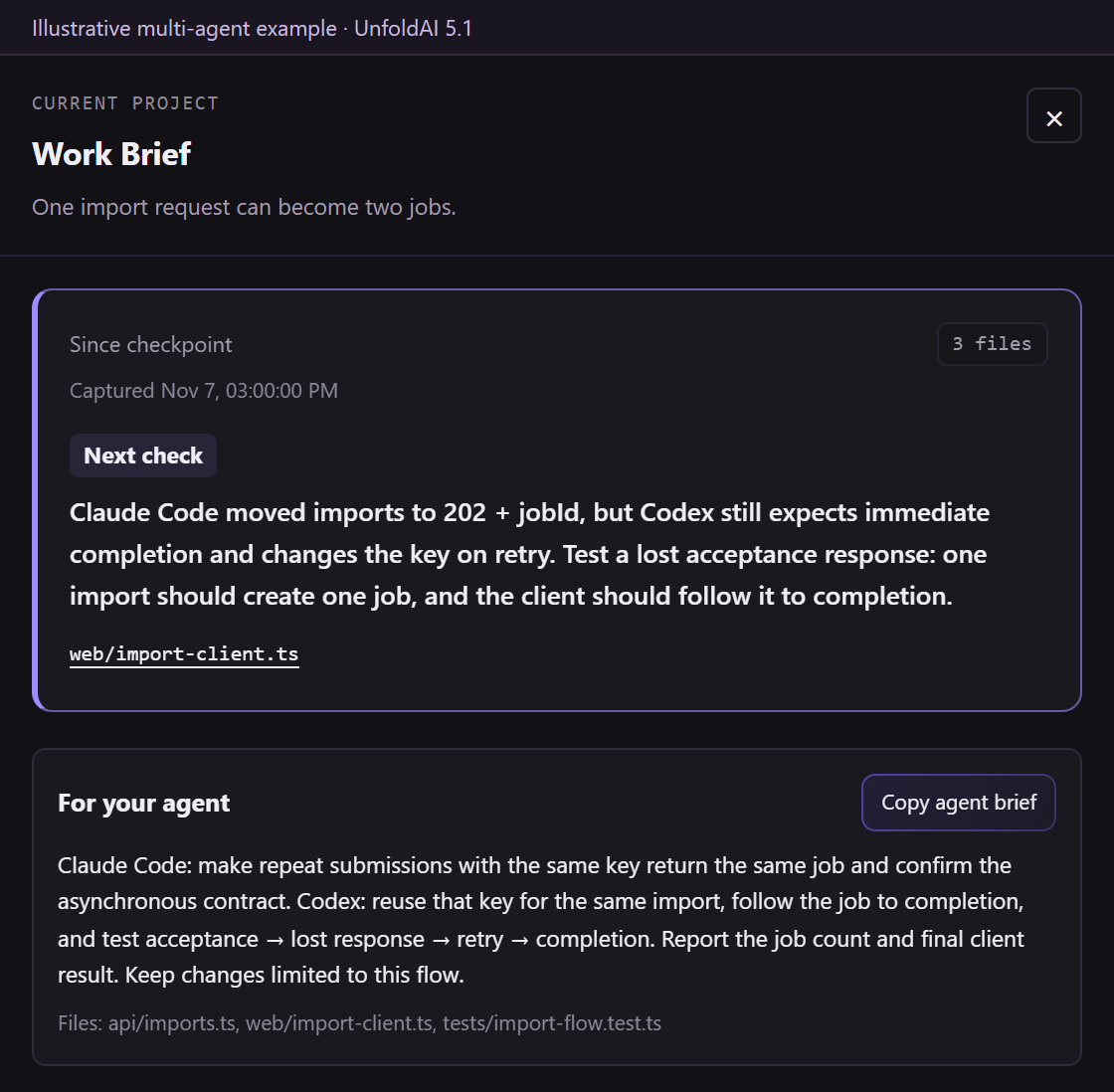
Illustrative multi-agent example: connect Claude Code’s API change with Codex’s retry flow, then give each agent a focused correction.
View the full example, including each agent’s changes.
Start with saved work
- Save the files you want to review.
- Open Work Brief and check the comparison shown at the top.
- Select a captured file to inspect it.
Work Brief supports files at the project root and in custom folders. It reflects saved files; save unsaved editor changes before reviewing them. Check any coverage notices if a file you expected is missing.
Saved changes are detected automatically. Use Check for changes for a fresh local view. When Review newer work appears, choose it to review the latest changes rather than an earlier brief.
Activity from earlier work may also be available. Use Open Precommit for the repository's current Git changes, or By agent to explore observed activity.
Analyze and continue the work
Choose Analyze current work for an explanation and a suggested next check. Review the result alongside the files and your project's tests. Some changes may need no further follow-up.
When For your agent appears, review the instructions and choose Copy agent brief. Paste the brief into your coding agent's chat, ask it to investigate, and review its findings. Copying a brief leaves the decision to send it with you.
The processing indicator shows when analysis is running. Choose Stop analysis to end the wait. Processing that has already begun may still count towards your allowance. After an interruption, use Check saved result if offered before starting another analysis.
Automatic analysis and quiet reminders
Open Work Brief preferences to enable automatic analysis for this project. Confirm the prompt and choose a daily limit. UnfoldAI can then offer a next check as your saved work changes, within your selected limit and account allowance.
Recent work cards and occasional notifications can bring useful work to your attention. Open a brief from the invitation, or review it later from Command. Turn off invitations or enable Quiet when you prefer to check manually. Quiet also pauses automatic analysis.
Account and usage
Opening a local brief does not require an account or an AI request. For AI analysis, sign in and make sure your account has available capacity.
Signed-in Free accounts have up to three Work Brief analyses per monthly account cycle, subject to shared Free AI capacity. Pro and Ultra analyses use their existing shared monthly AI capacity. Reopening a saved answer does not start another AI request.
If analysis is unavailable, follow the explanation shown in the extension. You can still review the local brief and checkpoints.
Privacy and sharing
AI analysis uses relevant project context, which may be processed by UnfoldAI's AI services. Review your privacy preferences before using it or enabling automatic analysis.
Sharing additional project context with a connected agent requires separate permission for that project. Connecting the agent alone does not enable this sharing. The agent's own privacy settings also apply.
Use Local-only to keep UnfoldAI's local workflows available while blocking its AI requests and product analytics. Work Brief preferences also let you change local context capture or clear analysis context.
See Privacy & Data Handling, Local-only mode and MCP setup.